
Document Revision #: 6
Document Date: December 24, 2018
This quick start guide will provide Investigators with an overview of how to complete a biospecimen request using the NCTN Navigator Portal (referred to as “Navigator”). Please access the NCTN Navigator User Guide for Investigators for more comprehensive information.
Navigator allows Investigators to query from available biospecimens, and to request biospecimens using the Letter of Intent (LOI) form. The request will go through a feasibility review process (using one or more Feasibility Reports that the Group Concierge will complete). After the Feasibility Report(s) are complete, the Investigator will be able to complete a Proposal form (if the LOI form is marked as feasible by the Front Door Service (FDS) Concierge). After the Proposal form is submitted to the FDS Concierge for review, it will go through a scientific review process, which will include a Core Correlative Sciences Committee (CCSC) review decision.
The Investigator will receive automated email notifications regarding notable updates to their request.
Figure 1 depicts the simplified workflow that a Navigator request can undergo during its lifecycle.
Figure 1: Simplified Workflow for Navigator Requests
For assistance, contact the FDS Concierge (Navigatorcontact@imsweb.com)
or click the “Contact FDS” link  that is found throughout
Navigator.
that is found throughout
Navigator.
Table 1: The List of Steps that an Investigator Must Follow to Complete a Navigator Request
Step # |
Task |
1 |
|
2 |
|
3 |
The process for requesting biospecimens begins in the Query tab of Navigator.
Instructions:
1) Login to the Navigator website (https://navigator.ctsu.org).
2) Click the Query tab of Navigator.
3) Choose a search category from the category pane (see Figure 2).
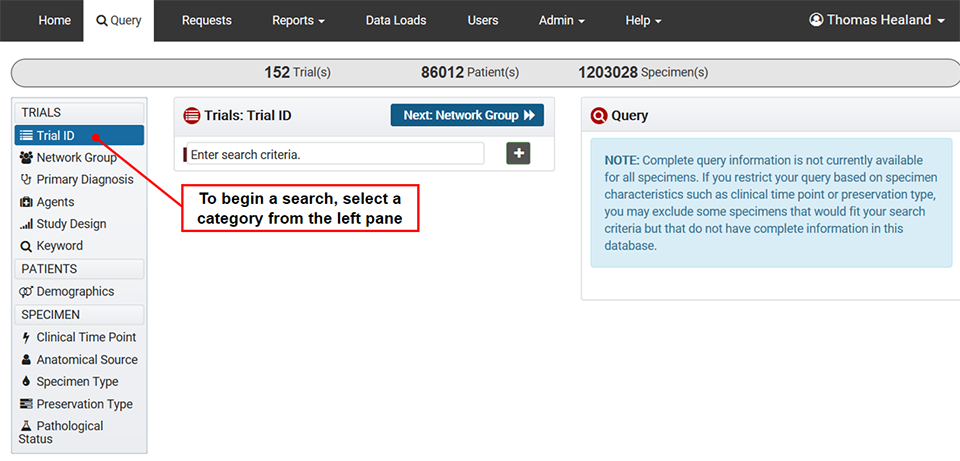
Figure 2: Select a Search Category from the Left Pane
4) Once a category has been selected, choose one or more search criteria from the middle pane (see Figure 3).
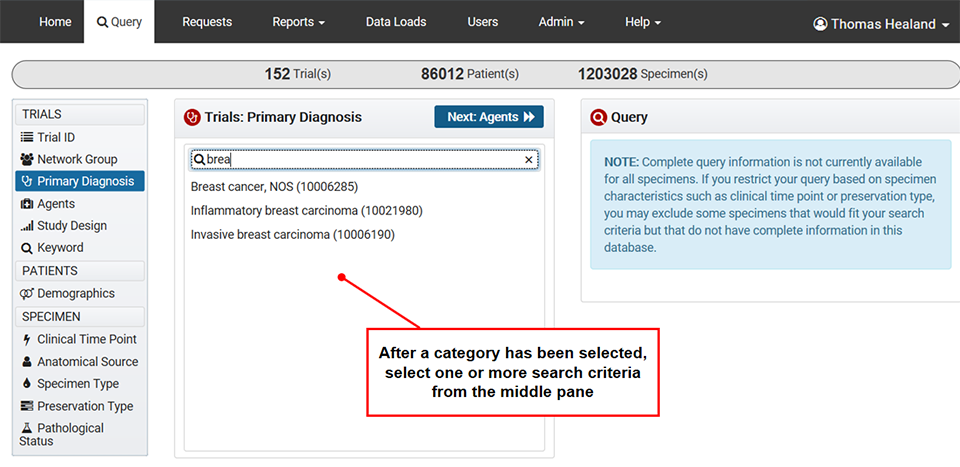
Figure 3: After Selecting a Search Category (Left Pane), Select Search Criteria (Middle Pane)
5) As search criteria are selected, they will appear in a cumulative list in the Query pane (see Figure 4).
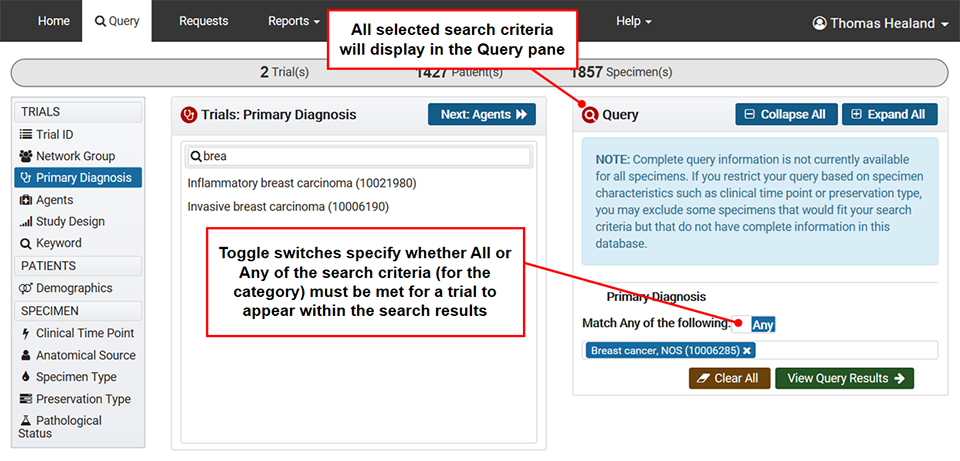
Figure 4: Selected Criteria Will Display in the Right “Query” Pane
6) The “Search Results” pane (see Figure 5) will display a list of trials that meet the criteria specified in the Query pane. Select at least one trial from the search results, and click the “Create LOI” button (see Figure 5). The “Create LOI” feature is only available to logged-in CTEP-IAM users.
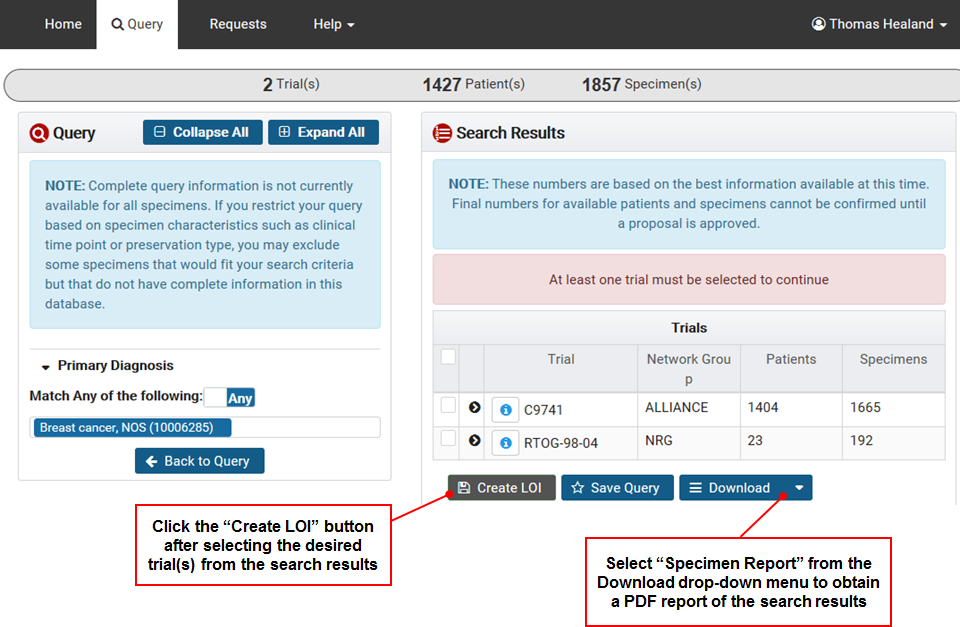
Figure 5: Click the "Create LOI" Button to Initiate a Navigator Request
Once the request has been initiated, the screen will refresh to the Summary page of the newly created request (see Figure 6), and the user will see the request number at the top of the screen.

Figure 6: The Screen Will Refresh to the Summary Screen of a New Request
Figure 7 provides a screenshot of a request’s Summary screen.
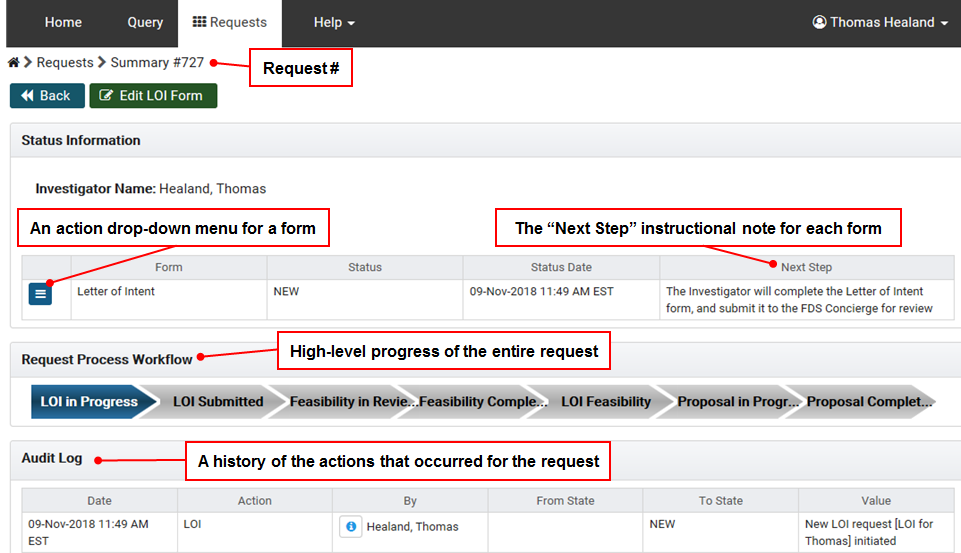
Figure 7: The Summary Screen for a Request
This section provides instructions for Investigators to complete a Navigator request’s LOI form (after they initiated the request from the Query screen in step 1).
Instructions:
7) Within
the Summary screen (of the Requests tab) for the request, click the “Edit
LOI Form”  button,
or select the “Edit” choice from the Action drop-down menu.
button,
or select the “Edit” choice from the Action drop-down menu.
8) The screen will refresh to the LOI form, which will be described below:
At the top of the LOI form is the “Overview of the Request” section (see Figure 8).

Figure 8: Screenshot of the "Overview for Request" Section of the LOI Form
Below the Overview for Request section are action buttons for the LOI form, and the “Project” section (see Figure 9).
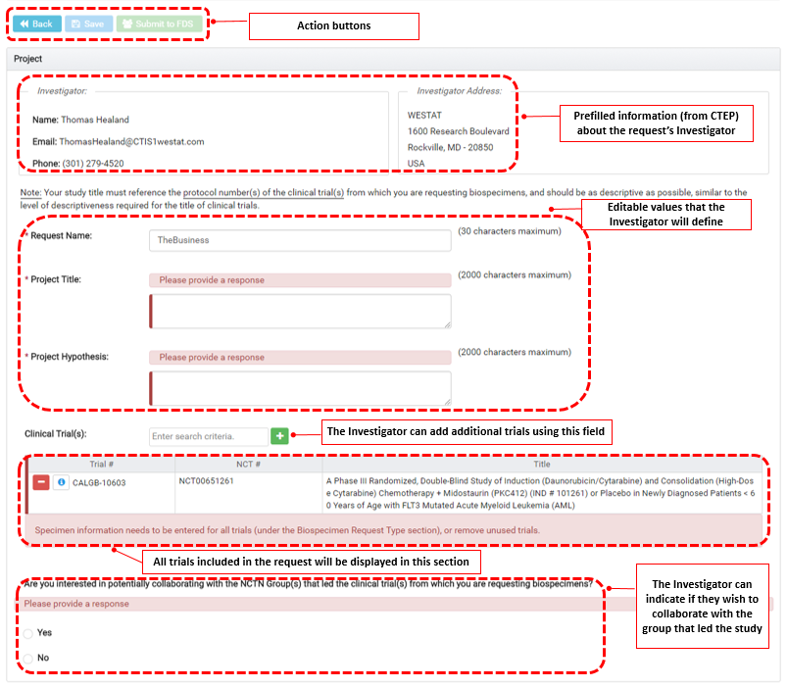
Figure 9: The "Project" Section of the LOI Form
Below the Project section is the “Biospecimen Request Type” section (see Figure 10).
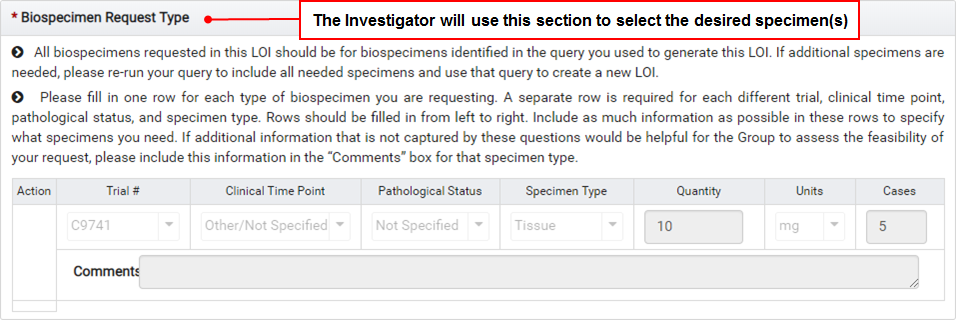
Figure 10: The "Biospecimen Request Type" Section
Below the Biospecimen Request Type section is the “Required Data Elements” section (see Figure 11).
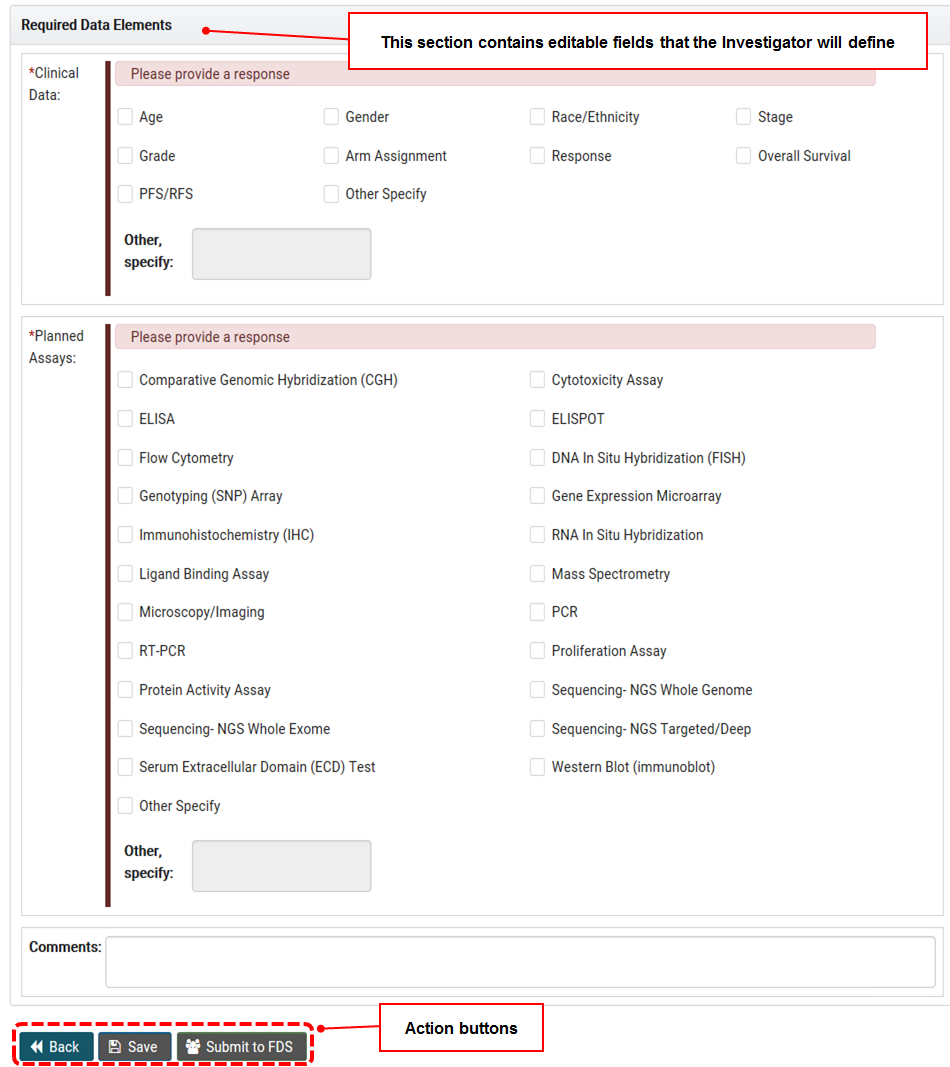
Figure 11: The "Required Data Elements" Section and Action Buttons
This concludes the description of the LOI form.
9) The Investigator will answer all of the required fields, or they can save their progress.
10) After
completing the LOI form (and all validation error messages have been addressed),
click the “Submit to FDS”  button to submit
the form to the FDS Concierge for review.
button to submit
the form to the FDS Concierge for review.
11) A popup confirmation message will appear to confirm the action, and it will give the user the opportunity to leave an optional comment for the FDS Concierge. Click the “Yes” button to continue, or “No” to cancel the submission process.
12) After confirming the submission, the status of the form will update to “FDS_REVIEW”, the screen will refresh to the request’s Summary screen with a confirmation message, and the FDS Concierge will be notified by email to review the request.
The FDS Concierge will either return the request to the Investigator with a question, or they could create the Feasibility Report(s) for the request and continue the request workflow.
Once a feasibility decision (of either feasible or not feasible) has been made for the LOI form, the Investigator will receive an email notification regarding the decision.
· If the LOI form was marked as feasible, the status of the LOI form will be updated to “FEASIBLE”, the Investigator will receive an email notifying them of the feasibility decision, and the Investigator can complete the Proposal form (see section 1.1.3).
· If the LOI form was marked as not feasible, the status of the LOI form will be updated to “NOT_FEASIBLE”, and no further action can be taken regarding the request.
Feasibility Reports will be accessible from the Summary screen once they achieve a COMPLETE status. Please access the NCTN Navigator User Guide for Investigators for more information.
If the LOI form has been marked as feasible (in step 2) by the FDS Concierge, the Investigator can proceed with completing the Proposal form.
Instructions:
13) Within the request’s Summary screen, click the “Create Proposal Form” button to initiate the Proposal form for the request (see Figure 12).
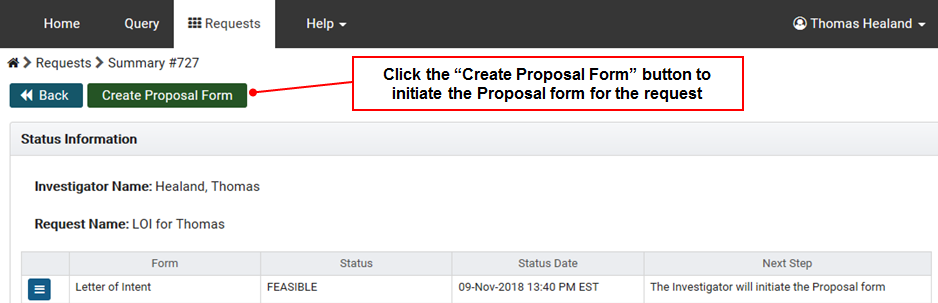
Figure 12: Click the "Create Proposal Form" Button
14) Confirm the action by clicking the “Yes” button in the popup confirmation window.
The Summary screen for the request will refresh with a confirmation message stating that the Proposal form was initiated, and the Investigator should proceed with completing the form.
15) Click the Edit choice from the action drop-down menu for the Proposal form (see Figure 13).
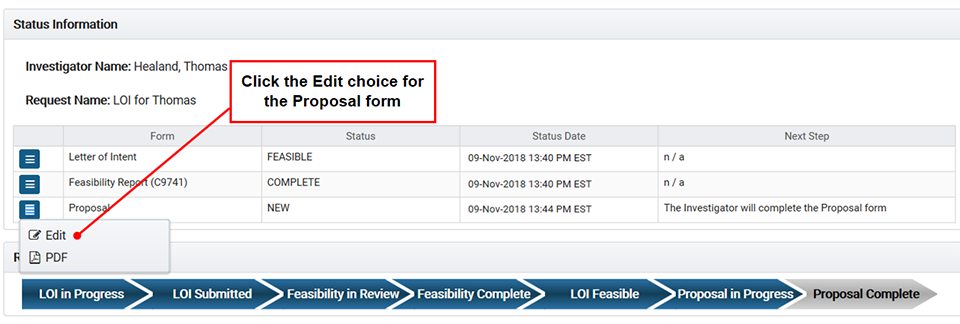
Figure 13: Click the Edit Choice for the Proposal Form
16) The screen will refresh to the Proposal form, which will be described below:
At the top of the Proposal form is the “Overview for Request” section (see Figure 14), and action buttons (“Back”, “Save”, and “Submit to FDS”) beneath it.
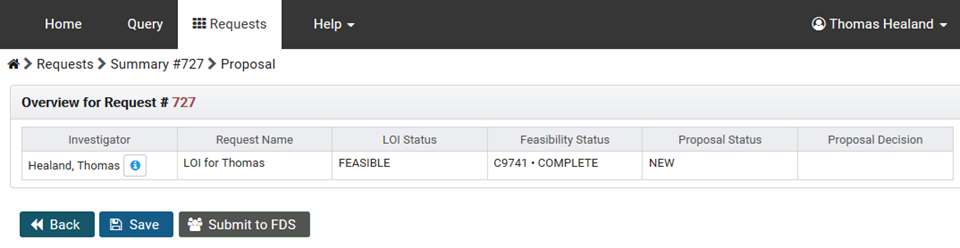
Figure 14: The "Overview for Request" Section of the Proposal Form
Below the action buttons for the Proposal form is the “Administrative Information” section (see Figure 15).
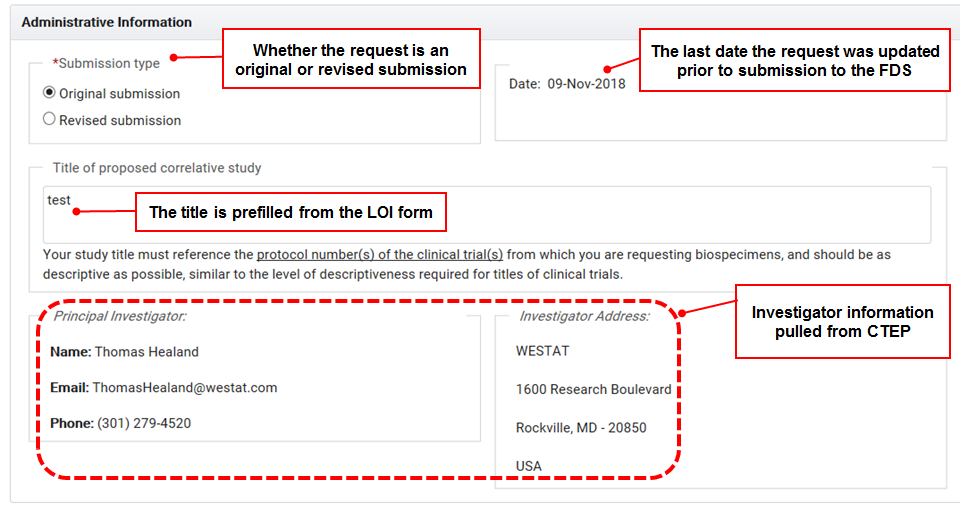
Figure 15: The "Administrative Information" Section of the Proposal Form
Below the “Administration Information” section is the “Required Attachments” section (see Figure 16).
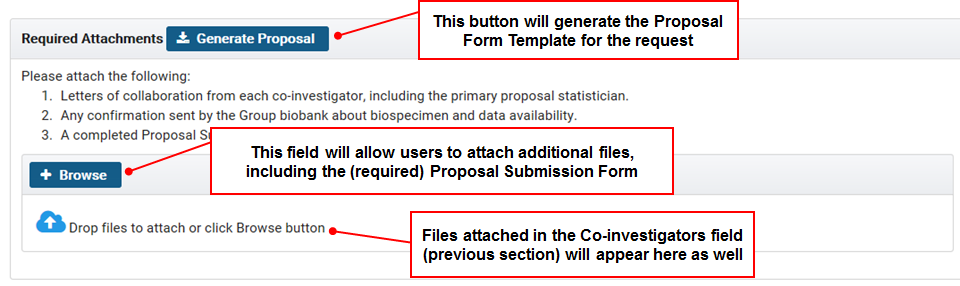
Figure 16: The "Required Attachments" Section of the Proposal Form
Below the Required Attachments section is the “Signature” section (see Figure 17). This field allows Investigators to electronically sign the form once all fields have been answered and all form validations have been addressed. Under the Signature section are action buttons (“Back”, “Save”, “Submit to FDS”) for the Proposal form.
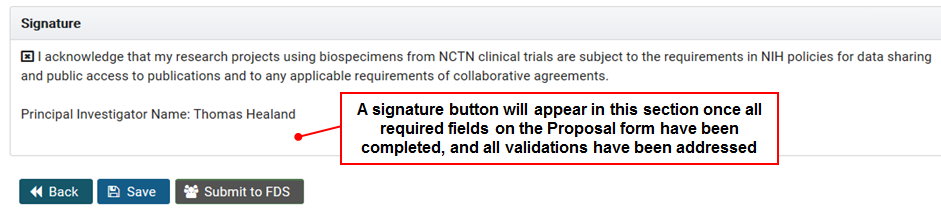
Figure 17: The "Signature" Section of the Proposal Form and Action Buttons
This concludes the description of the Proposal form.
17) The Investigator should proceed with completing all required fields in the Proposal form, and address all form validation messages, or save the form.
18) Once
all required fields and form validations have been addressed, the Investigator
must electronically sign the Proposal form before they can submit the
Proposal form to the FDS Concierge for review. To electronically sign
the form, click the “eSign”  button
(see Figure 18), to open the electronic signature interface.
button
(see Figure 18), to open the electronic signature interface.

Figure 18: Click the "eSign" Button in the Proposal Form
The Investigator will enter their CTEP-IAM credentials in the electronic signature interface, and then click the “eSign” button to complete the electronic signature process for the Proposal form.
After the form has been electronically signed, the Signature section will refresh to indicate the electronic signature of the Investigator, along with the date and time that the electronic signature was captured.
19) Click
the “Submit to FDS”  button to submit
the proposal to the FDS Concierge for review. Click the “Yes” button in
the confirmation popup to proceed with the submission process.
button to submit
the proposal to the FDS Concierge for review. Click the “Yes” button in
the confirmation popup to proceed with the submission process.
The form’s status will be updated to “FDS_REVIEW”, an email notification will be sent to the FDS Concierge informing them that the Proposal form is ready for them to review, and the user’s screen will refresh to the request’s Summary screen with a confirmation message.
After the Proposal submission form has been submitted to the FDS Concierge, the process can take one of several paths:
· The FDS Concierge (or CCSC) may have a question for the Investigator regarding the Proposal form, so the form would be returned to the Investigator with a comment or question.
· Further review may be needed by the CCSC; the form’s status would remain in a CCSC_REVIEW status, and the Proposal form’s decision would temporarily be “Approval on Hold”.
· The CCSC could make the determination that the Proposal form should be disapproved, under which the FDS Concierge would mark the Proposal form’s CCSC decision as “Disapproval”. Under that circumstance, the status of the form would update to “COMPLETE”, and the Investigator would receive an email notification that the Proposal form has been disapproved. Requests that have a disapproved CCSC decision cannot proceed further.
· The CCSC could make the determination that the Proposal form should receive full approval, under which the FDS Concierge would mark the Proposal form’s CCSC decision as “Full Approval”. Under that circumstance, the status of the form would update to “COMPLETE”, and the Investigator would receive an email notification that the Proposal form received full approval. The FDS Concierge would coordinate further activities, including coordinating the distribution of the biospecimens (with the biospecimens banks).
This concludes the instructions for completing a Navigator request.