Request Browser
Introduction and Access
The Request Browser allows certain users to see the status of bulk requests that have been submitted. Depending on the user type, different persons can see different sets of data.
- Site users can see only their own requests.
- NCI and CTSU staff can see all requests.
The bulk operations available in the DTL application and viewable in the Request Browser are:
- Clone DTLs;
- Assign Tasks;
- Inactivate Tasks;
- Submit DTLs; and
- Approve DTLs.
All bulk requests result in a confirmation page that includes the request ID and a link to the item in the Request Browser (see Figure 1).

Figure 1: Bulk Request Confirmation Page.
Aside from using the links within the confirmation screen, users can access the Request Browser by selecting Request > Browser in the menu (Figure 2); site staff can also access it via the Dashboard Quick Link (Figure 3).
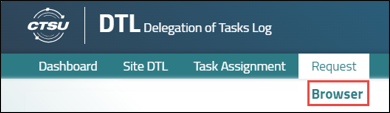
Figure 2: Request Browser - Menu Item.
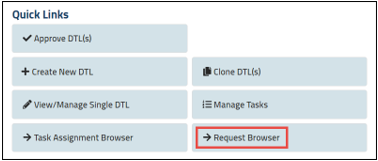
Figure 3: Request Browser - Quick Links.
Grid
The Request Browser provides a high-level overview of each bulk request in a grid. The default view shows requests from the past 30 days, but the Set Requested Date Range filter can be adjusted to view data for up to 6 months in the past (requests are deleted from the system after 6 months).
The Request Browser grid includes the following information (see Figure 4):
- Request ID - the ID associated with the request.
- Status - the status of the request (can be Submitted, Processing, Completed, or Failed).
- Updated Date - the date on which the request was last updated.
- Process Type - the type of request (one of the five bulk operations).
- Requested Date - the date on which the request was initiated.
- Requested By - the user who submitted the request (as a reminder, site staff are only able to view their own requests). An i button
 next to the user provides more information on the person.
- Summary - the summary of the bulk request. Content differs depending on the request type and status of the request.
- Actions – the View Request Details icon
 allows the user to view more information about the DTL bulk request.
Sorting, filtering, and export of grid data is available.
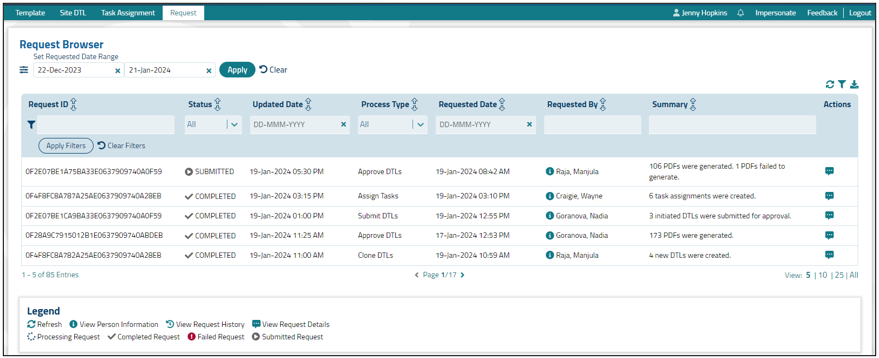
Figure 4: Request Browser.
The Request Browser also contains the following features:
- Refresh Browser - icon
 displays above the grid. On click of the icon, grid data refreshes to show the most current data. After the refresh, all filters previously set by the user will go back to their default settings (will not be preserved).
- Date Range Filter - appears above the grid. User can apply a date range, which will display requests with a Requested Date in the entered range. The date range can also be cleared and as a result, the grid lists all requests within the default 30 days.
Request Details
Clicking on the Request Details icon for a given request will bring up the details of that request (see Figure 5). Some of the information provided will differ based on the type of request, but all detail screens include a request summary at the top, and a grid that includes each individual item within the request on its own row (e.g., each cloned DTL, each task assignment, each DTL submitted for approval). You can review the status of each individual item, and when applicable, use the View DTL icon to go to the individual site DTL in a separate tab. Note that affected DTLs will be locked until processing is complete.

Figure 5: Request Details.
Post Date: 19-Mar-2024